
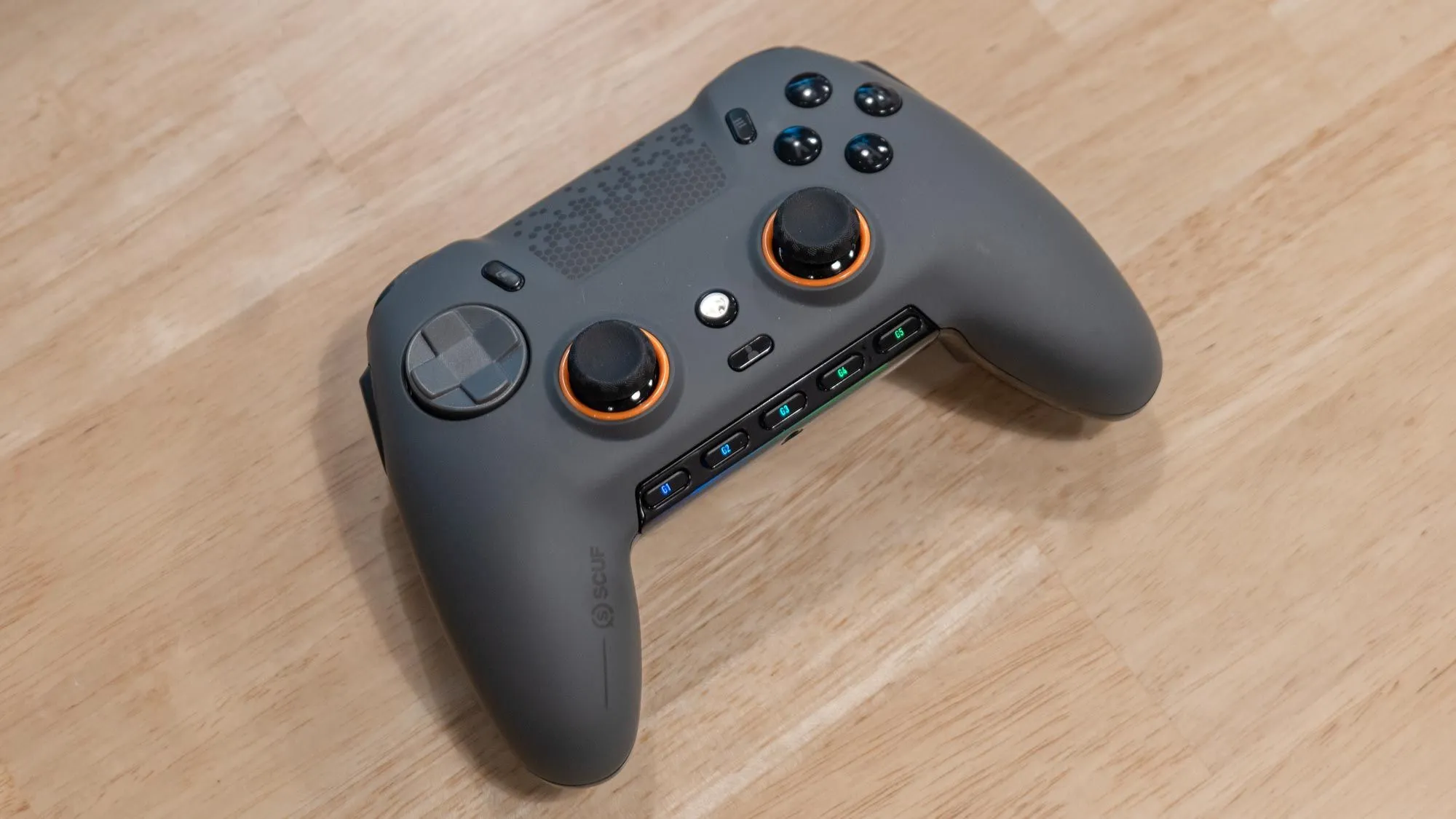
Game controller setup for PC is essential for players who want precise control, comfort, and seamless gameplay across various titles. Whether you enjoy racing games, fighting games, or action-adventure titles, a properly configured controller enhances performance and immersion.
Many gamers underestimate the importance of calibration, driver installation, and button mapping. By following best practices, players can reduce input lag, optimize responsiveness, and customize controls according to personal preferences, creating a smoother and more enjoyable gaming experience.
Why Proper Game Controller Setup for PC Matters
Optimizing Game controller setup for PC is crucial because improper configuration can lead to delayed inputs, unresponsive controls, or discomfort during extended gaming sessions. Modern controllers like Xbox, PlayStation DualSense, and third-party devices offer unique features, but they require correct setup to function optimally.
Gamers who master controller settings report higher accuracy in competitive games, better ergonomics, and reduced fatigue. Real-life examples include professional racers or fighting game champions who rely on meticulously configured controllers to execute precise maneuvers during high-pressure matches.
Choosing the Right Controller
The first step in Game controller setup for PC is selecting a controller compatible with your system and preferred games. Xbox controllers are widely supported on Windows, offering plug-and-play ease with minimal configuration. PlayStation controllers require additional drivers or software but offer excellent haptic feedback.
Third-party controllers often provide extra features like programmable buttons, rapid-fire options, or ergonomic designs. Understanding your gaming style and device compatibility ensures a smooth and responsive setup.
Installing Drivers and Software
For most controllers, Game controller setup for PC requires proper driver installation. Windows often recognizes Xbox controllers automatically, while PlayStation controllers may need DS4Windows or Steam’s controller support to map inputs correctly.
Software like Steam Input allows users to customize sensitivity, dead zones, and button assignments. Regularly updating drivers ensures compatibility with the latest games and prevents connectivity issues during gameplay.
Wired vs Wireless Setup
Choosing between wired and wireless configurations is a key aspect of Game controller setup for PC. Wired connections typically offer lower latency and consistent performance, which is ideal for competitive gaming. Wireless controllers provide convenience and mobility but may require periodic charging or Bluetooth setup.
Advanced setups sometimes use wireless adapters to maintain reliability while reducing cable clutter. Testing both configurations ensures players select the option that best suits their gaming style and environment.
Calibrating Your Controller
Calibration is an often-overlooked step in Game controller setup for PC. Proper calibration ensures joystick sensitivity, trigger response, and button mapping are accurate. Calibration tools available in Windows or through Steam Input allow players to adjust dead zones, range of motion, and vibration intensity.
Professional gamers often spend time fine-tuning calibration settings for each game, which improves precision in racing titles, shooters, and platformers. Personalized calibration minimizes input errors and enhances control responsiveness.
Button Mapping and Customization
Customizing button layouts is another critical aspect of Game controller setup for PC. Mapping buttons to fit your playstyle reduces hand strain and optimizes reaction times. For example, assigning frequently used actions to easily reachable buttons allows smoother gameplay in fast-paced titles.
Many modern games allow in-game remapping, while software like Steam or DS4Windows enables global profiles for different games. Creating multiple profiles ensures that each game feels intuitive and natural, improving overall performance.
Using Steam for Controller Integration
Steam provides robust support for Game controller setup for PC, including Xbox, PlayStation, and generic controllers. Steam Input allows players to create custom profiles, adjust sensitivity, configure haptic feedback, and emulate keyboard and mouse inputs.
With Steam’s overlay, gamers can switch profiles on the fly, access calibration tools, and test settings before starting matches. This flexibility ensures a consistent experience across all titles, whether indie or AAA.
Optimizing for Different Game Genres
A proper Game controller setup for PC varies depending on the game genre. Racing games benefit from fine-tuned analog stick sensitivity and trigger calibration for precise acceleration and braking. Fighting games require rapid response mapping and optimized button combinations for combos.
Action-adventure or platform games benefit from custom dead zones and vibration feedback adjustments. Understanding the specific requirements of each genre ensures the controller delivers maximum responsiveness and enhances overall gameplay satisfaction.
Troubleshooting Common Issues
Even with a proper Game controller setup for PC, issues can arise, such as unrecognized controllers, input lag, or accidental button misfires. Regular driver updates, checking USB ports or Bluetooth connections, and using reliable software can resolve most problems.
For persistent issues, reinstalling drivers, resetting controller firmware, or testing on a different PC helps isolate problems. Troubleshooting ensures uninterrupted gaming sessions and prevents frustration during competitive play.
Ergonomics and Extended Play
Proper Game controller setup for PC also includes ergonomic considerations. Controllers with adjustable grips, textured surfaces, and balanced weight distribution reduce hand fatigue during long sessions.
Gamers often pair controllers with wrist rests or adjustable seating to maintain comfort. Optimized ergonomics allow players to maintain focus and performance during extended play, which is especially important for competitive gaming or marathon sessions.
Advanced Configurations and Macros
Advanced setups for Game controller setup for PC may involve programmable macros, turbo buttons, or custom trigger adjustments. These features allow complex input sequences to be executed with a single press, giving an edge in repetitive or high-speed scenarios.
Professional gamers use macros cautiously to ensure compliance with game rules while improving efficiency in training or casual matches. Advanced configuration options maximize controller capabilities while maintaining fair play.
Wireless Accessories and Adapters
Many gamers enhance Game controller setup for PC with wireless adapters, charging docks, and extension cables. These accessories improve connection stability, reduce downtime, and provide a clutter-free gaming environment.
For example, Bluetooth adapters with low-latency protocols reduce input lag, while charging docks keep controllers ready for continuous gameplay. Accessories complement the setup, creating a seamless and professional experience.
Tips from Professional Gamers
Professional gamers emphasize the importance of a personalized Game controller setup for PC. They recommend testing different sensitivity levels, mapping frequently used actions for comfort, and regularly calibrating joysticks and triggers.
Watching live streams or tutorials from esports players provides insights into optimal configurations for various game genres. Adapting these tips ensures players gain competitive advantages and maximize controller performance.
Read also:
greblovz2004 free
greblovz2004 gaming apk
which greblovz2004 to play
which greblovz2004 should i start with